Program Search
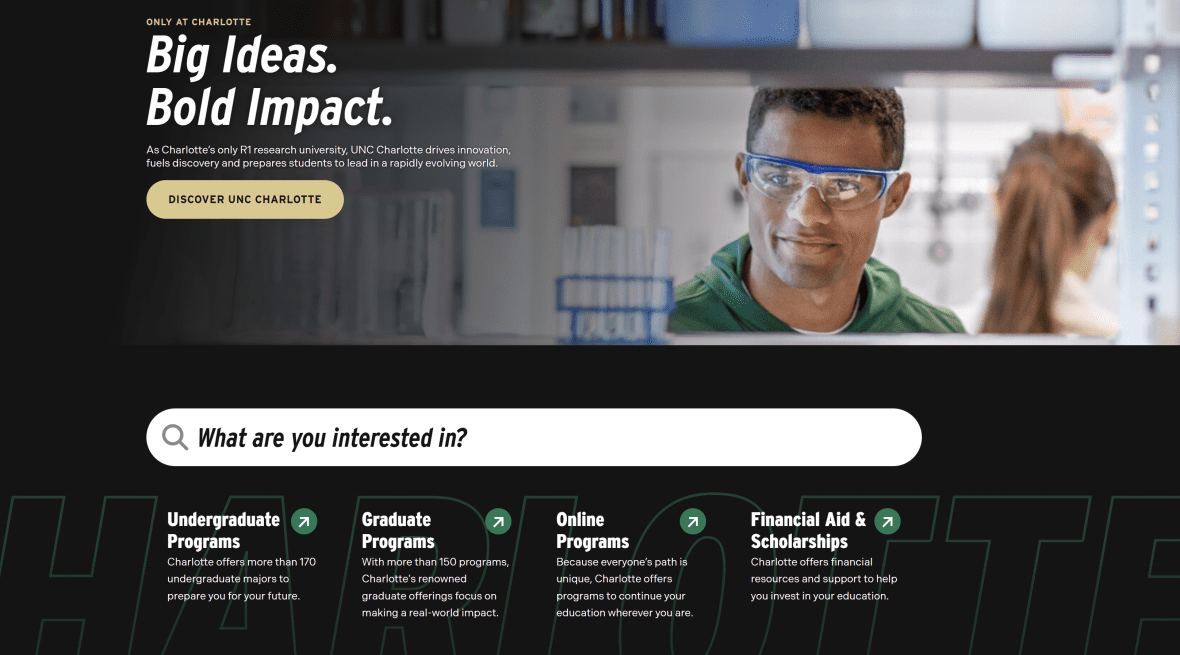
The Program Search block is a WordPress component that embeds the “What are you interested in?” program search interface directly into a page. It is integrated with the university’s Academics Portal (academics.charlotte.edu) and pulls program data directly from that system. When a user selects a program, they are redirected to the corresponding program page within academics.charlotte.edu, where full program details are displayed.
When to Use This Component
USE CASES OR SCENARIOS
Use the Program Search block on pages where visitors are likely to be exploring or comparing academic programs, such as:
- Academic overview or landing pages
- Recruitment or admissions-related pages
- Pages designed to help prospective students find programs
Component Do’s & Don’ts
There might be a time when you don’t know whether to use a Program Search component or not. Here are some examples of how to effectively use a Program Search component and when you shouldn’t use one:
DO
When using the Program Search block, place it in a prominent, easy-to-find location on the page so that users can access it quickly. All program information is managed in the Academics Portal, not within WordPress. If you need to highlight specific programs rather than providing a general search, you can use other blocks to list individual programs—for example, departments can create a curated list of programs relevant to their area. Any links in these lists should point directly to the corresponding program pages in academics.charlotte.edu.
After adding the block, test the search functionality to confirm it displays and behaves as expected, and contact Web Services if the search bar does not load correctly or returns unexpected results.
DON’T
The Program Search block should not be placed on pages unrelated to academics or program exploration, and it should not be used to highlight specific programs, as it is designed for general program search rather than curated lists. The block should be easy for users to locate and should not be hidden or buried within the page layout. After adding the block, always test its functionality to ensure it loads correctly and behaves as expected. Additionally, avoid placing multiple Program Search blocks on the same page, as this can confuse users and create unnecessary clutter.
Component Design Options
Below are the Program Search component design options, with explanations of each and guidance on proper usage.
EDITABLE PARTS:
- Block Options:
- Customized Search Label: This option allows you to customize the text that appears inside the program search input field, guiding users on what to enter. For example, you might use “What are you interested in?” to prompt visitors to type a program name or keyword. The label should be clear, concise, and reflective of the search functionality to ensure users understand what they can search for.
- Program Filters:
- Filter by Program Type: Allows users to narrow search results based on the type of academic program, such as undergraduate, graduate, certificate, or doctoral programs. This helps users quickly find programs that match their academic level.
- Filter by Location Type: Enables users to filter programs by where they are offered, such as on-campus, online or the Dubois Center formats. This is especially helpful for students considering remote or flexible learning options.
- Filter by College: Lets users limit their search to programs offered by a specific college within the university, such as the College of Engineering. This makes it easier to explore programs within a particular academic division.
- Filter by Field of Study: Allows users to filter programs by academic disciplines or areas of study, such as Business or Education. This helps users quickly find programs that match their interests or career goals.